

Guide · Web-to-print
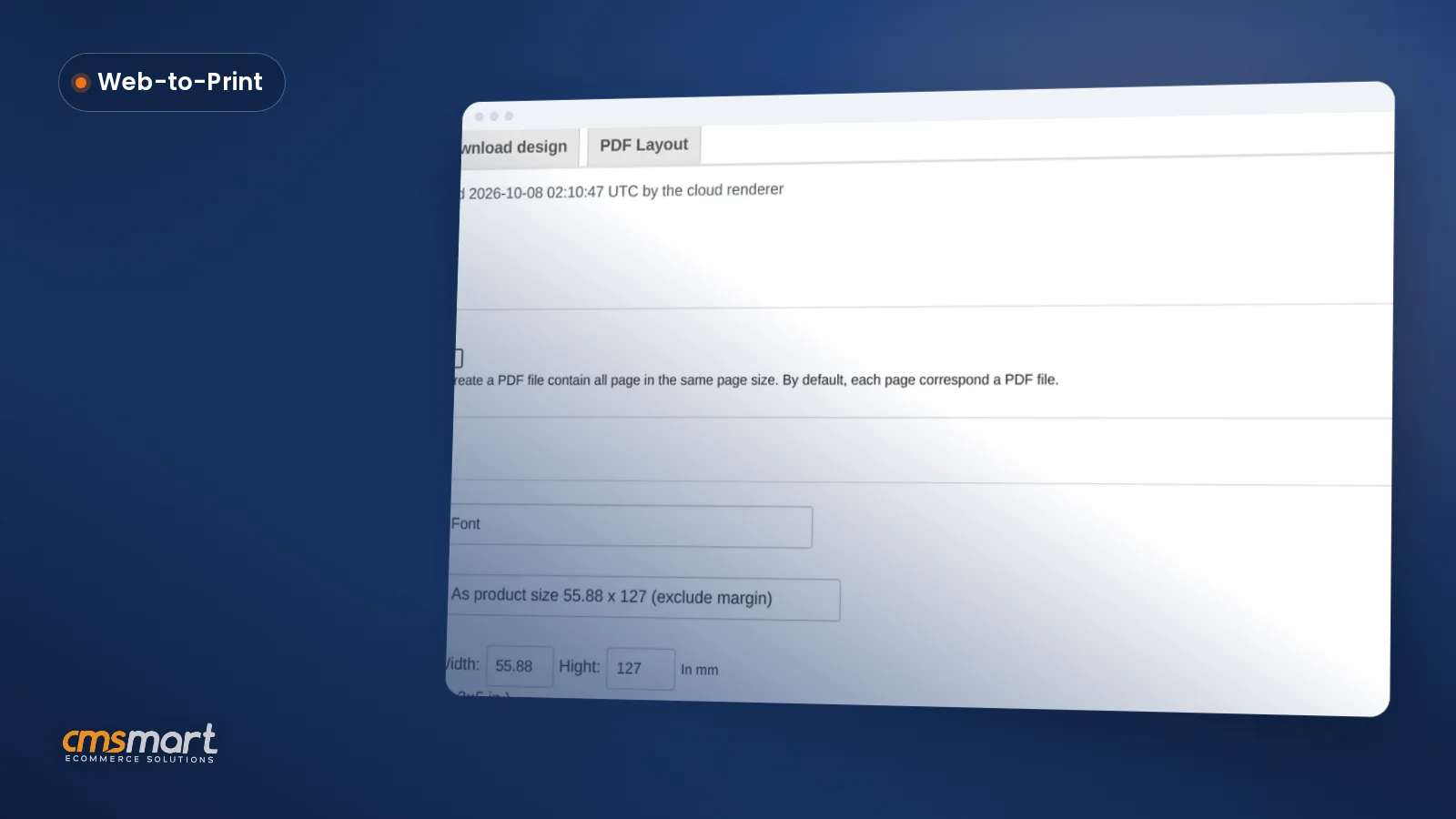
Custom Size Printing WooCommerce: Price It Live
Custom size printing WooCommerce shoppers configure themselves: Cmsmart prices it live and matches the print-ready PDF to the order. Get a quote.
A perfect website contains many plugins that make your job easy. So how to do that? Today, CMSmart will introduce you to how to install and configure a plugin
Table of contents
Was this tutorial helpful?
Written by
Cmsmart WooCommerce Plugins & Themes Specialist
Installs, configures and customises WooCommerce plugins and themes, ours and the market's.
The team behind it
 Account Manager
 Project Manager
 Business Analyst
 Developers & QA
Guide · Web-to-print
Custom size printing WooCommerce shoppers configure themselves: Cmsmart prices it live and matches the print-ready PDF to the order. Get a quote.
Guide · WooCommerce
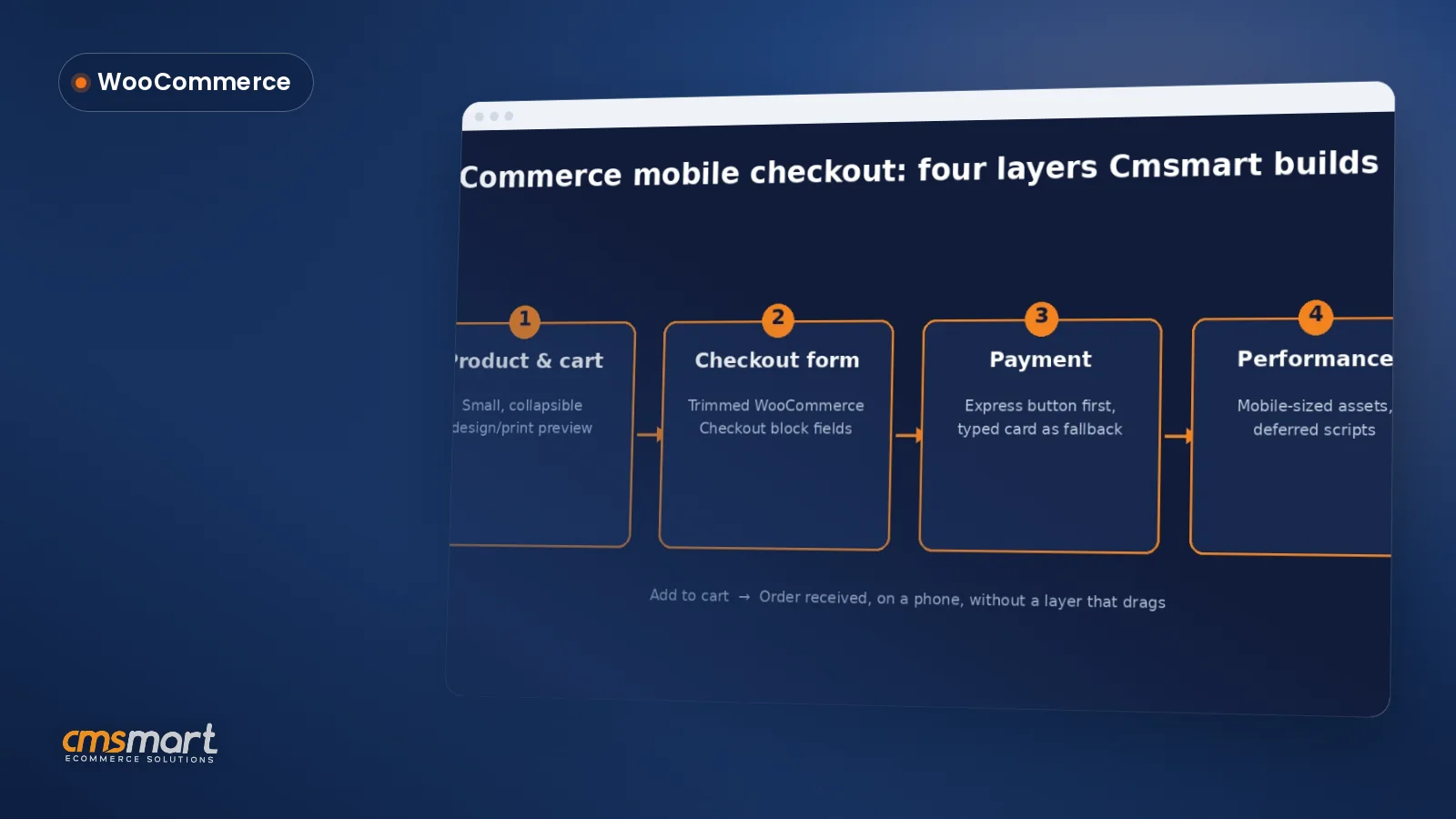
Fix your WooCommerce mobile checkout before shoppers bounce: cut fields, add express pay, speed up pages, and request a custom build quote today.
Guide · WooCommerce
Plan a WooCommerce HPOS migration that keeps checkout, plugins and reports working. Get Cmsmart's step-by-step guide and request a quote today.
Browse more guides, tutorials and case studies from the Cmsmart community.
All you have to do is find a solution that will give you complete control over the ticketing process. So, I want to introduce you to a feature-rich plugin WPEvent - Woocommerce Tickets
Read MoreIn this post, we’ll talk about what features you’ll require for your events website, and how to choose the right event management plugin. Let’s see
Read MoreHere are Great Event Website Design tips that turners page visitors into excited attendees.
Read More
Cmsmart Ecommerce provides custom ecommerce and WooCommerce development services for web-to-print, product personalization, plugin support and API integration.
Cmsmart WooCommerce Plugins & Themes Specialist
Installs, configures and customises WooCommerce plugins and themes, ours and the market's.
Meet the team →





A website will get better and better if you set up plugins to support your work. But for many people, setting up a plugin is quite difficult. So, Cmsmart introduce easily way to install any plugins, such as the one below.
WooCommerce Event Ticket & Calendar is a WordPress plugin to create events with defined start times and duration in a schedule. It is essential plugin to help you own a professional and user-friendly event website, not only about event organization but also more. Customers who visit your website can easily register your services and events.
3 steps to install and configure WooCommerce Event Ticket & Calendar Plugin:
Download file wpbookingevent.zip
Step 1: Add and install plugin
Access to Dashboard –> Plugins –> Add New –> Upload Plugin
Next, click “Choose File”, navigate to the Plugin folder that you have downloaded. Then click on “Install Now” button
Step 2: Activate plugin
After installation is complete, click “Activate Plugin” to allow the plugin to work
Step 3: Import sample data
The WP Booking Event tab is available, click on it and import media sample. It takes about 3 minutes, you can start your event website.
See details in the video below:
It’s easy to install and configure WooCommerce Event Ticket & Calendar right? You can try this product on WPEvent Demo. We hope that you find the guidance useful. If you have any questions about this product, feel free to contact Vincent. He will answer your question
Vincent
Sales Consultant Manager
Skype: live: vincent_4281
Phone/ WhatsApp: +84 937 869 689
Email: [email protected]