Explore product personalization and 3D preview options for custom-product workflows.
Plan around your store requirements.
Talk with Cmsmart about implementation options.
What you can explore:
- ✅ Product options for configurable products
- ✅ 3D previews for custom-product workflows
- ✅ Implementation options for your store
Want ecommerce updates and resources?
Subscribe for ecommerce updates:
You'll get:
- ✔ Ecommerce tips and product updates
- ✔ Tutorials and service information
- ✔ Personalization and 3D product resources
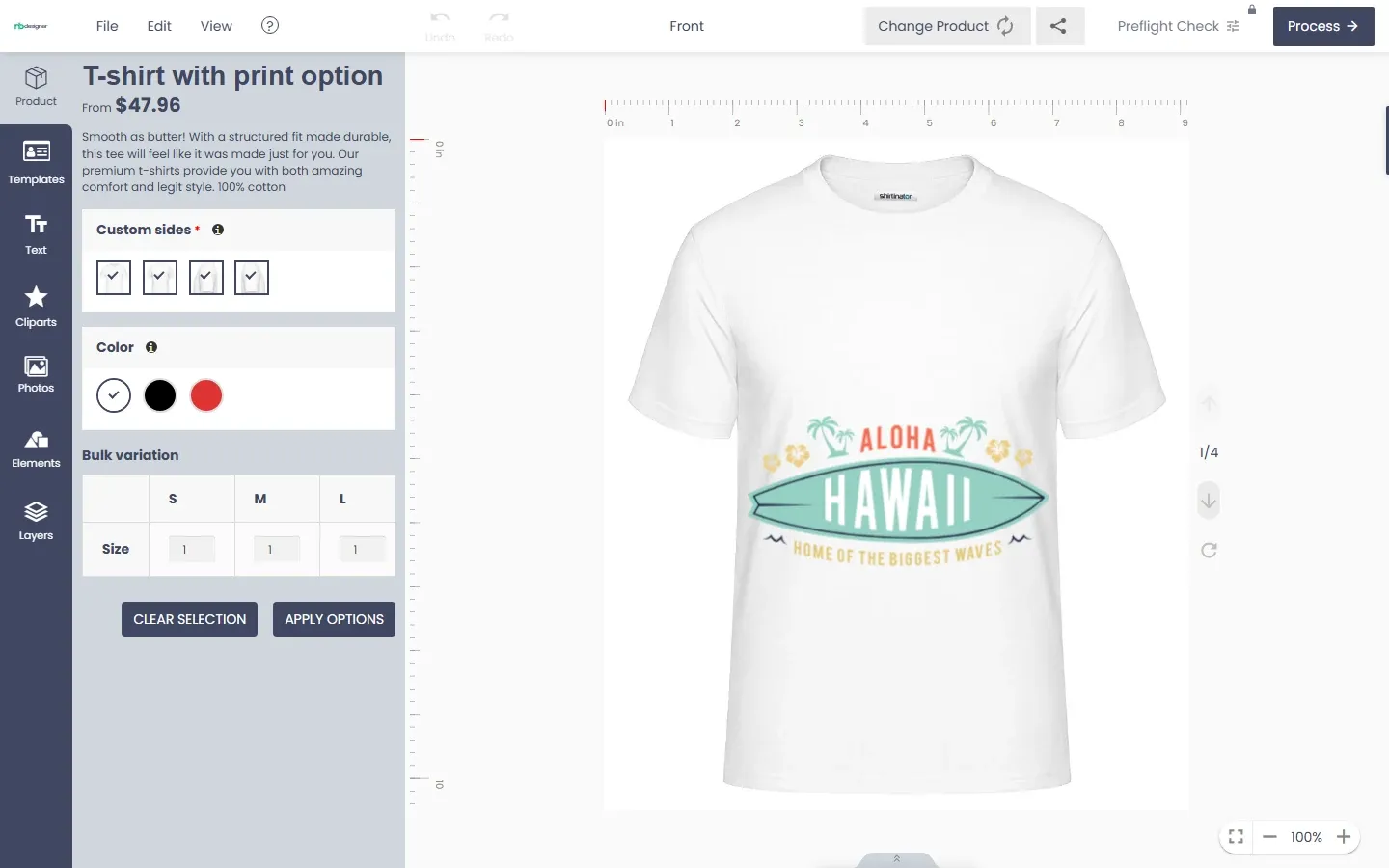





Each product can have different versions. For example: Product A has three colors: blue, red, and yellow, which means that there are three versions of product A that the seller can display and the customer can choose.
You want to manage the number of products in stock and out of stock? We offer the "Conditional Logic" feature so you can display stock availability, stock availability and stock availability. I will guide you in detail the operation steps. Let's explore together.
To set the product attributes, follow these steps:
Step 1: To perform this function, of course, the first thing we need to create is a product such as a shirt, pants or shoes.
Note: when creating a product and name it TEST03, remember to check the box "Enable Printing option", then you can save it temporarily in draft or Publish always.
Step 2 : To proceed with the "Conditional Logic" function, go to the newly created product section and select Edit Option.
The system will redirect you to the "Edit Option" page, you also name the Edit Option, for example I will set it to TEST03 to refine the options for the product.
Step 3 : You select the "Default field"
For example: the product you want to refine is a shirt. We will proceed as follows:
- Fill in the value fields of the product including Size and color
Step 4 : Select conditions specific to the product
For example:
Sizes are available in BLUE and GRAY
Only sizes XL and L are RED (Size M and S are not RED).
Only sizes XL, L and M are GREEN (Size S is not GREEN)
Note: Select "Any" instead of "All" in the "Enable this Field If"...."Of these rules match"
And remember in Color -> Appearance, Select "Swatch" to show color samples
And finally review how the function works on your store.
Also you can refer to the detailed video below:
Above are some new Highlight Features of Online Product Designer and How to use Design guide line with web to print Online Design? Hopefully, the article has brought you a clear overview of version 2.5.0 and you find a useful guide. Don't miss to use coupon code MAR_DL to get 18% discount for this item. If you have any questions, feel free to feedback Here. My colleagues and I are willing to support you. If you want to have more experience in our products, please access the link: Check Out
Best regards.
Have a nice day!