

Guide · Web-to-print
NBDesigner License Key Setup: Activate & Configure
Activate your NBDesigner license key, unlock unlimited products and print-ready PDF export, then configure WooCommerce settings in minutes with Cmsmar...
Match brand colors in your product designer so every WooCommerce order prints true to your palette. See the setup steps, then get a quote.
Table of contents
Was this tutorial helpful?
Written by
Cmsmart Product Designer Plugin Engineer
Builds and supports the Cmsmart Product Designer (NBDesigner) for WooCommerce.
The team behind it
 Account Manager
 Project Manager
 Business Analyst
 Developers & QA
Guide · Web-to-print
Activate your NBDesigner license key, unlock unlimited products and print-ready PDF export, then configure WooCommerce settings in minutes with Cmsmar...
Guide · Web-to-print
Translate WooCommerce product designer screens: pick the right Cmsmart layout, set up Loco Translate or WPML, and sell in every buyer's language.
Guide · Web-to-print
See how a WooCommerce 3D product preview lets shoppers rotate your product before buying, set it up in NBDesigner, and get a custom 3D build scoped.
Browse more guides, tutorials and case studies from the Cmsmart community.
Custom bag design software for WooCommerce: Cmsmart Product Designer adds live pricing and print-ready files. See how to set it up.
Read MoreCar wrap design software for WooCommerce: panel templates, size-based pricing, 3D preview and approval before you print. Plan your wrap store now.
Read MoreDiscover how the home décor industry is transforming with the rise of personalized products and the challenges retailers face. Learn how CMSmart's Product Builder offers a solution, improving customer engagement, reducing return rates, and increasing sales through real-time 3D previews and automated processes.
Read More
Cmsmart Ecommerce provides custom ecommerce and WooCommerce development services for web-to-print, product personalization, plugin support and API integration.
Cmsmart Product Designer Plugin Engineer
Builds and supports the Cmsmart Product Designer (NBDesigner) for WooCommerce.
Meet the team →



In short
A buyer opens your WooCommerce store, drops your logo onto a template, and expects the pink in their cart to be the same pink that ships. To match brand colors in your product designer, you need the on-canvas text and color tools talking to the same print-ready pipeline your press uses, not two separate systems that happen to look similar on a laptop screen.
Most stores get the first half right and the second half wrong: the online designer looks great, then the printed box arrives a shade off and a support ticket follows. This guide walks through where brand color actually lives in Cmsmart Product Designer (NBDesigner) 2.17.0 — the text panel, the product's color option, and the color profile field that flags screen vs. print intent — and where Cmsmart builds the rest as custom development.
Why does an off-brand design cost you reorders?
Cmsmart Product Designer keeps brand color decisions in the admin, not in email threads, so a buyer's on-screen choice and the shop's printed output stay the same color from the first proof to the reorder six months later.
A handful of pains show up again and again in print and merch shops that sell customization:
None of this is really a "design" problem — it is a workflow problem. The cost of the status quo is roughly: reorders per month caused by color mismatch, multiplied by the cost of a reprint (material plus labor plus shipping), plus the staff hours spent quoting colors by hand instead of letting the product page do it.
What would it look like if every order matched your brand colors?
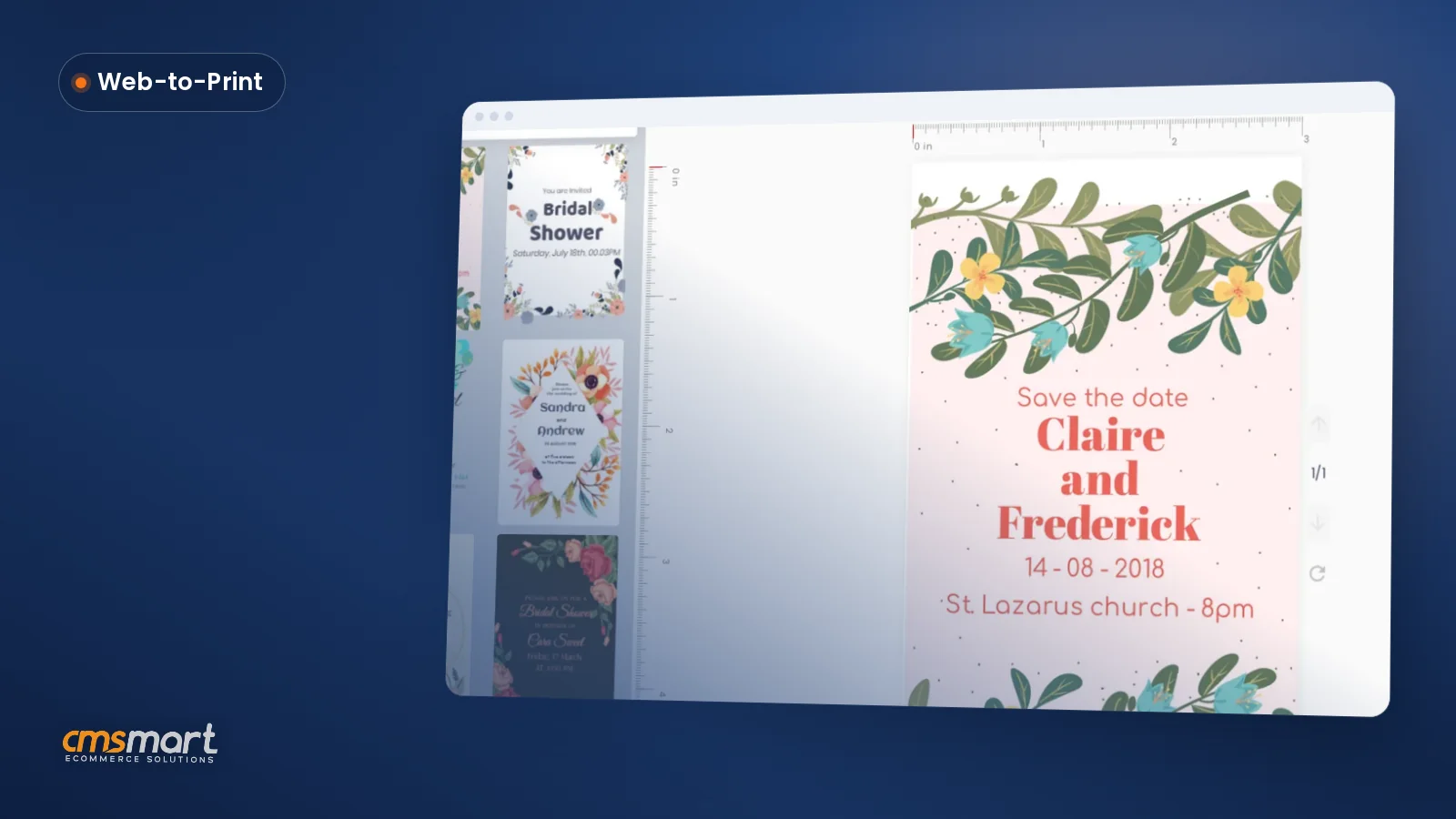
In Cmsmart Product Designer, a buyer opens the online designer, picks a heading style from the Text panel, sets the product's color from the options you configured, and the price and print file both update together — no email round-trip before production starts.
Example scenario: a buyer opens a stationery product at 10pm, drags in a heading, swaps the font to one of the combinations in the Text panel, and picks the product's accent color from the options on the page. They check out. By the time production opens in the morning, the order already carries a print-ready file in the color the buyer actually chose — no one had to ask what "brand blue" meant.
How does Cmsmart match brand colors in your product designer?
Cmsmart Product Designer splits the job into three pieces: the Text tool for on-canvas type, a Color/Material printing option the admin attaches to a product, and a per-product Color profile note plus a separate CMYK/ICC-profiled JPG download for teams that need a true color-managed file for press.
Four building blocks carry the work, and each one is either live in the plugin today or built on top of it as custom development:
Cmsmart insight: the most common mistake we see is treating the print-ready PDF as a color-managed file. The per-product Color profile field is a reference note, not a conversion step — if your press needs true CMYK/ICC color, download the CMYK JPG (with its ICC profile) alongside the PDF, and check that file's color before you check the design.
What's the ROI of getting brand colors right in your product designer?
Cmsmart Product Designer turns color and font choices into a configured option instead of a support conversation, so the business value shows up as fewer reprints, fewer "what color is this" tickets, and a shorter path from click to a print-ready file.
Rough ROI worksheet: reprints avoided per month × your cost per reprint (material + labor + shipping), plus hours saved per month on color/font support questions × your fully loaded hourly rate. Run it with your own order volume before you commit budget to anything beyond the plugin's built-in setup.
WooCommerce is a reasonable platform to build this on: it now runs 47.6% of e-commerce sites whose platform W3Techs can identify (W3Techs, accessed October 2026), and the WooCommerce plugin itself has been activated on more than 7 million WordPress sites (WordPress.org, 2026) — so a color-and-font workflow you build here is built on infrastructure that isn't going away. Personalization also pays for the business, not just the buyer: 81% of customers say they prefer companies that offer a personalized experience (Forbes 2024 State of Customer Service and CX Survey, cited via Shopify, 2024), and a brand-matched product is a personalized one.
How do you set up font and color options in Cmsmart Product Designer?
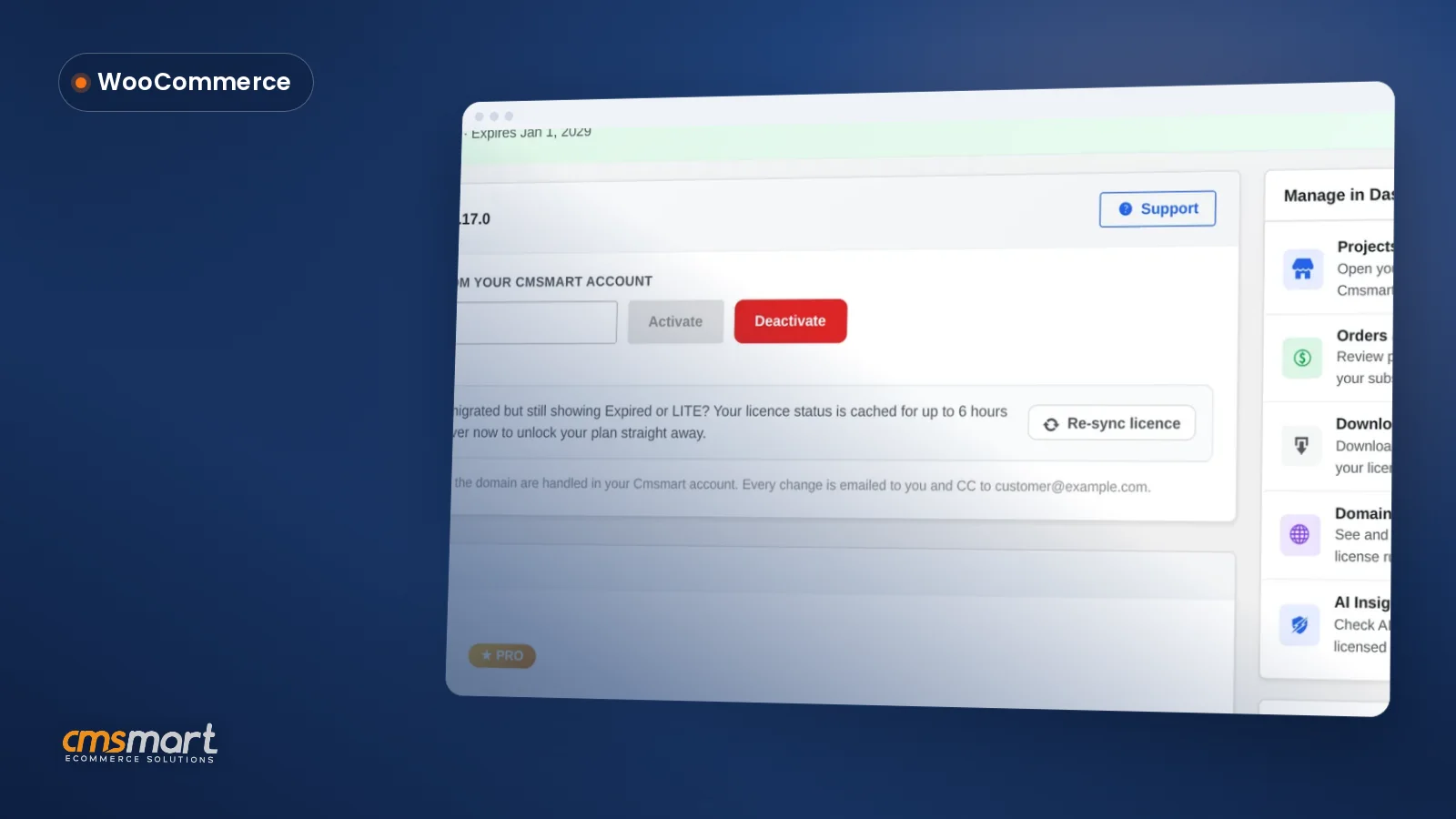
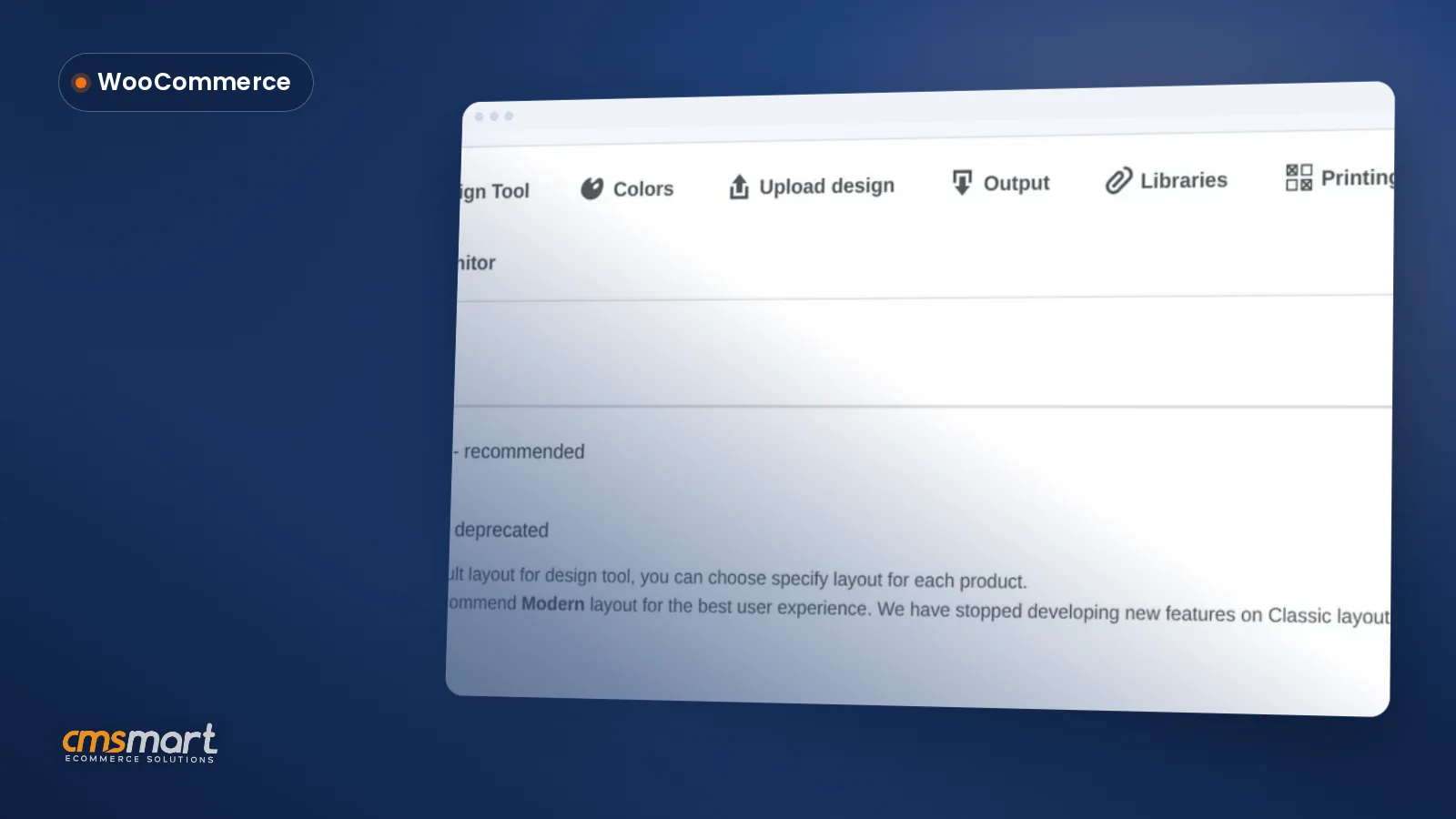
Cmsmart Product Designer needs a handful of admin steps — confirm the version, enable the designer on a product, attach a Color/Material option, and set the color profile — before a buyer's font and color choices turn into a print-ready file.
Going further: what custom brand-color tooling does Cmsmart build?
Beyond the Text panel and the Color/Material option, Cmsmart builds locked brand-palette tools, catalog and ERP color sync, and Pantone-to-print conversions for stores whose brand rules are stricter than a single dropdown — all delivered as custom development on top of Cmsmart Product Designer.
A few extensions come up often enough that they're worth planning for, even though none of them ship in the core plugin:
The delivery approach is the same whichever of these you need: discovery call, a short solution design, build sprints, QA against real orders, launch, and support afterward — see how that plays out on real builds at Cmsmart's ecommerce project case studies. If your store's brand rules don't fit a single dropdown, read more about the service on the product designer customization service page.
Get a custom brand-color setup quote
Why work with Cmsmart on your product designer?
Cmsmart has built and supported the Product Designer (NBDesigner) plugin since 2012 as a Netbase JSC division, which is why stores trust it for both the out-of-the-box Text and Color/Material tools and the custom color workflows built on top.
Cmsmart has delivered 6,300+ client projects since 2012, including custom work on top of this plugin, and is rated 4.2 on Trustpilot from 404 published reviews. For related work, see the web-to-print solutions hub and real project write-ups at cmsmart.net/projects. For other setup angles on this plugin, see using the product designer in the back end and setting up the WooCommerce product customizer.
Frequently asked questions about brand colors in Cmsmart Product Designer
Can buyers pick any color, or only the colors I choose?
That's an admin setting: the Color/Material printing option you attach to a product defines the exact choices a buyer sees, so you control the list rather than letting anyone type in a free-text color.
Why did my printed color come out different from the screen preview?
Check which file you're comparing: the print-ready PDF follows the product's page geometry, not a CMYK conversion. For a true color-managed file, download the CMYK JPG with its ICC profile from Download design and match your press to that, not just to the on-screen preview.
Does the plugin manage a font library for the whole store?
Yes — Custom Fonts live under the admin Media menu, with server-side pagination and a category filter so a large font set stays searchable as you add brand-approved typefaces.
Can Cmsmart lock a buyer to our exact brand palette instead of a generic color list?
The core Color/Material option gives you a fixed list already. A hard lock tied to specific accounts or brand guidelines is something Cmsmart builds as custom development on top of that option.
Does the print-ready PDF always match what the buyer approved?
From 2.17.0, the automatic print-ready render and the admin's Create PDF read the same page geometry, including custom sizes, so the print-ready PDF that matches the order is the same file whichever path generated it.
How long does a brand-color setup project usually take?
A plugin-only setup (Color/Material option plus color profiles) is typically a short admin task. Custom work like ERP color sync or locked brand palettes runs through discovery, solution design, build sprints, QA and launch — ask for a scoped estimate once you know which pieces you need.