

Step 1: Upload WordPress installation file into your host Step 2: Install WordPress on your domain You can create new database or use created database Step 3: Go to Backend > Appearance > Theme > Add new > Upload > Choose theme file Step 4: Install and active theme Step 5: Install and active plugins Step 6: Select demo and import demo data Step 7: Import icon for site Step 8: View the site after completing Watch the video below for a quick...


Step 1: Create a new folder in Public_html with folder name is mag2_antique Step 2: Upload file quickstart on folder mag2_antique by FTP Step 3: Extract file .zip in folder mag2_antique Use command 1. cd public_html/ enter 2. ls enter 3. cd mag2_antique enter 4. ls enter Step 4: Run 2 command 1. composer require magento/product-community-edition 2.2.6 --no-update (import corresponding version number into the command) 2. composer update or php -d memory_limit=-1 `which composer` update Step 5: Create Database Step 6: Import Database by command: 1. mysql -u...

Step 1: Upload WordPress installation file into your host Step 2: Install WordPress on your domain You can create new database or use created database Step 3: Go to back end > Appearance > Theme > Add new > Upload > Choose theme file > Install Step 4: Install and active plugins Step 5: Select demo and import demo data Step 6: View the site after completing

How to install Teepro WordPress theme into your hosting? Step 1: Upload WordPress installation file into your host Step 2: Install WordPress on your domain You can create new database or use created database Step 3: Go to back end > Appearance > Theme > Add new > Upload > Choose theme file > Install Step 4: Install and active plugins Step 5: Select demo and import demo data Step 6: View the site after completing

Step 1: Create a new folder in Public_html with folder name is mag2_printshop Step 2: Upload file quickstart on folder mag2_printshop by FTP Step 3: Extract file .zip in folder mag2_printshop 1. Use command 2. cd public_html/ enter 3. ls enter 4. cd mag2_printshop enter 5. ls enter Step 4: Run 2 command 1. composer require magento/product-community-edition 2.2.6 --no-update (import corresponding version number into the command) 2. composer update or php -d memory_limit=-1 `which composer` update Step 5: Create Database Step 6: Import Database by command: 1. mysql...


Step 1: In admin panel, go to Shop By Brand -> Manage Brands -> Add New Brand Step 2: Add New Brand 1. In Tab General Information: Brand Title: fill in title of brand. Status : enable if you want to display this brand in frontend, disable if you don’t want to display this brand in frontend. Store View: select store view of your website. Description : fill in information of this brand. Meta Keywords: fill in keywords for this brand....

Watch the video below for a quick overview of how it works: How to quickstart install Multistore WordPress theme into your hosting? Thank for reading! Contact Vincent Sales Consultant Manager Skype: live:vincent_4281 Phone/ WhatsApp: +84 355 993 306 Email: [email protected]

Watch the video below for a quick overview of how it works How to manually install Multistore WordPress theme into your hosting? Thank for reading! Contact Vincent Sales Consultant Manager Skype: live:vincent_4281 Phone/ WhatsApp: +84 355 993 306 Email: [email protected]


Watch the video below for a quick overview of how to activate Layered Navigation Extension For Magento 2: How to customize the navigation feature for quickly filter-tool on site? from Cmsmart Netbase on Vimeo. If you need any help figuring out please feel free to Contact us and we will be happy to help.
Most read this month
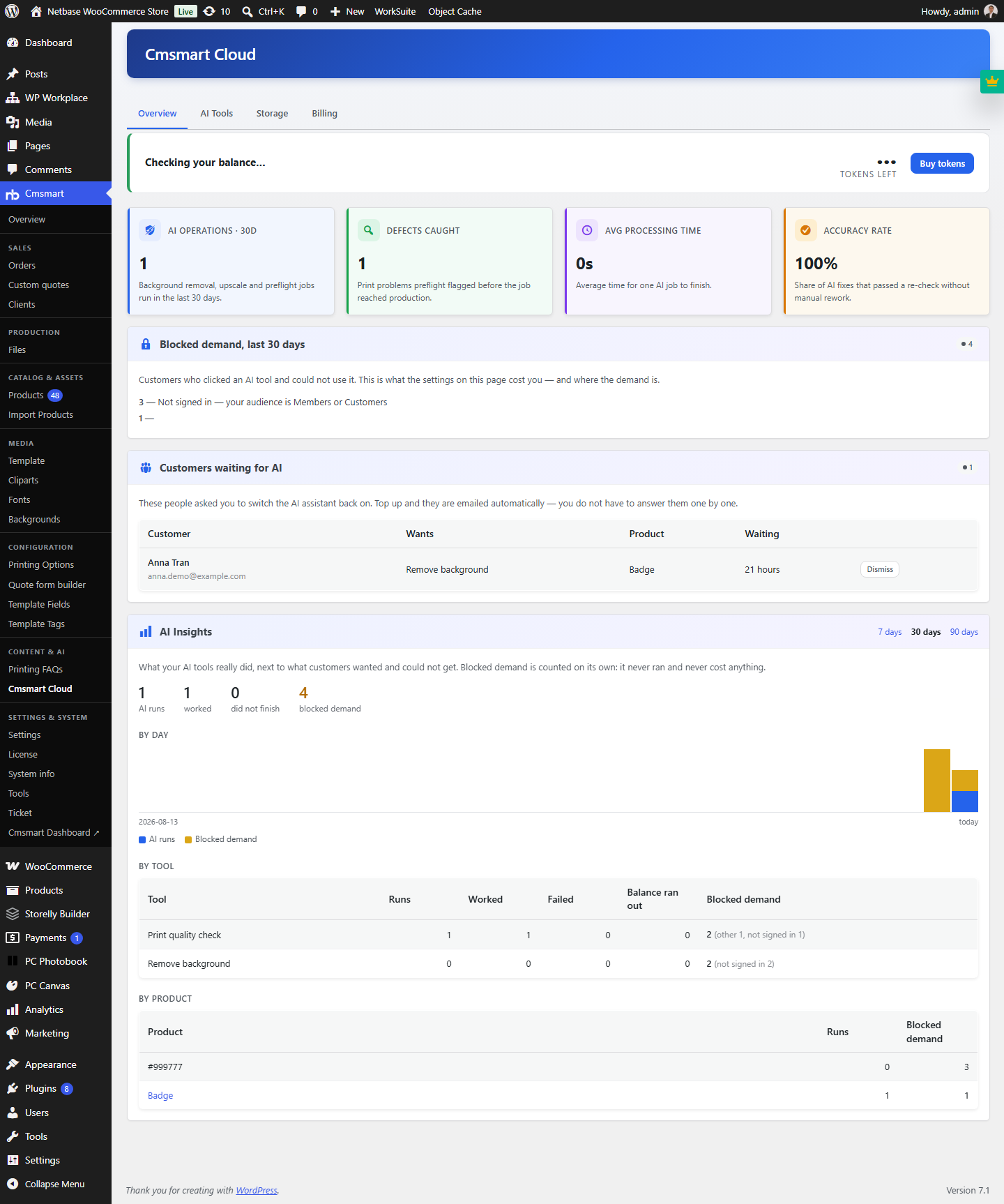 Cmsmart Product Designer 2.15: a critical security fix, a steadier dashboard, and AI you control and profit from
 How to installation NBDesigner plugin?
 Cmsmart Product Designer 2.10.0 – Built-in Customer CRM, AI Print-QA and a Redesigned Dashboard
 Teespring Business Model: All You Need to Know
 Master T-shirt SEO: Unlock Your Brand’s Potential with High-Impact Keywords and Smart Strategies
 6 Ecommerce Web Design Companies to Evaluate
 Free download NB Designer lite version & Install tutorial
 Introduction On Product Listing And Catalog In An Ecommerce Marketplace
 Cmsmart product designer 2.9.0 – solving critical compatibility issues with wordpress, woocommerce and php 8.x
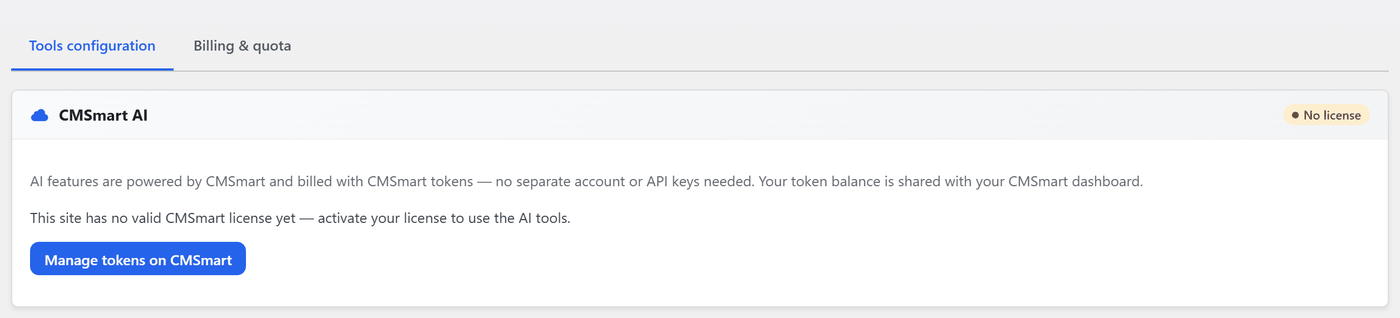 Cmsmart Product Designer 2.12 — AI on Your Own Licence, a Real Quotes Area, and Print Files You Can Trust

Cmsmart Ecommerce provides custom ecommerce and WooCommerce development services for web-to-print, product personalization, plugin support and API integration. For company background and team leadership, see David Nguyen.

Top