

Guide · Web-to-print
How to Start a Mug Printing Business (2026 Guide)
Learn how to start a mug printing business with a real online designer, automatic print-ready PDFs, and order tracking. Get your free project plan.
Build a WooCommerce price matrix with Cmsmart Printing Options to price print jobs instantly, see the ROI, and get a custom pricing engine quote.
Table of contents
Was this tutorial helpful?
Written by
Cmsmart Product Designer Plugin Engineer
Builds and supports the Cmsmart Product Designer (NBDesigner) for WooCommerce.
Reviewed by David, Founder & CEO
More from this expert →The team behind it
 Account Manager
 Project Manager
 Business Analyst
 Developers & QA
Guide · Web-to-print
Learn how to start a mug printing business with a real online designer, automatic print-ready PDFs, and order tracking. Get your free project plan.
Case study · Web-to-print
Launch photo printing business software on WooCommerce: buyers upload photos, preview designs, and pay, while you get print-ready PDFs. Get a free quo...
Guide · B2B
Custom bag design software for WooCommerce: Cmsmart Product Designer adds live pricing and print-ready files. See how to set it up.
Browse more guides, tutorials and case studies from the Cmsmart community.
Custom bag design software for WooCommerce: Cmsmart Product Designer adds live pricing and print-ready files. See how to set it up.
Read MoreCar wrap design software for WooCommerce: panel templates, size-based pricing, 3D preview and approval before you print. Plan your wrap store now.
Read MoreDiscover how the home décor industry is transforming with the rise of personalized products and the challenges retailers face. Learn how CMSmart's Product Builder offers a solution, improving customer engagement, reducing return rates, and increasing sales through real-time 3D previews and automated processes.
Read More
Cmsmart Ecommerce provides custom ecommerce and WooCommerce development services for web-to-print, product personalization, plugin support and API integration.
Cmsmart Product Designer Plugin Engineer
Builds and supports the Cmsmart Product Designer (NBDesigner) for WooCommerce. Meet the team behind Cmsmart.




In short
A buyer wants 250 flyers, then asks what 500 would cost, then whether a heavier stock changes the price. On most print sites that is three emails and a spreadsheet lookup — and by the time your reply lands, they have ordered from a competitor who showed the price on the page.
Print pricing is never one number — it moves with size, quantity, stock and finish. A WooCommerce price matrix puts that grid on the product page: pick a cell, see the price, add to cart. This guide covers the business case, the steps to build one with Cmsmart Product Designer (NBDesigner) Printing Options on WooCommerce, and when Cmsmart builds a custom pricing engine instead.
Why does manual print quoting cost you orders?
Manual quoting costs a print shop twice over: staff time answering the same questions, and buyers who leave before the answer arrives. A WooCommerce price matrix built in Cmsmart Printing Options shows every size-and-quantity price instantly, so buyers check out on the spot and your team only quotes the jobs that are genuinely custom.
Put your own numbers against it: quote requests per month × minutes per quote × your hourly cost, plus requests that never convert × the margin on an average order. Baymard Institute's checkout research found that 40% of shoppers who abandon a cart do so because extra costs were too high, and a further 12% abandon because they could not see the total cost up front — exactly the gap a price matrix closes before checkout (Baymard Institute, 2025). The same self-service appetite shows up in B2B buying: a Gartner survey of 646 buyers found 67% would rather complete a purchase without a sales rep at all (Gartner data via Digital Commerce 360, 2026) — a print buyer emailing for a price is exactly that rep-dependent step.
What could instant, transparent print pricing look like for your buyers?
With instant pricing, a buyer opens the product page, sees sizes and quantities as a grid, clicks a cell, watches the price update, and moves straight into the designer. Cmsmart Product Designer renders that grid from a single Printing Options group, and the same group can price many products at once.
Example scenario
An office manager needs business cards for a new hire by Friday. A grid on your product page shows two card sizes against four quantities, and the saving per card at higher volumes is obvious without asking anyone. They pick the larger quantity, a premium stock, open the designer, approve their proof and pay — no email thread, no quote request, and your team finds a priced, designed order waiting on Monday morning.
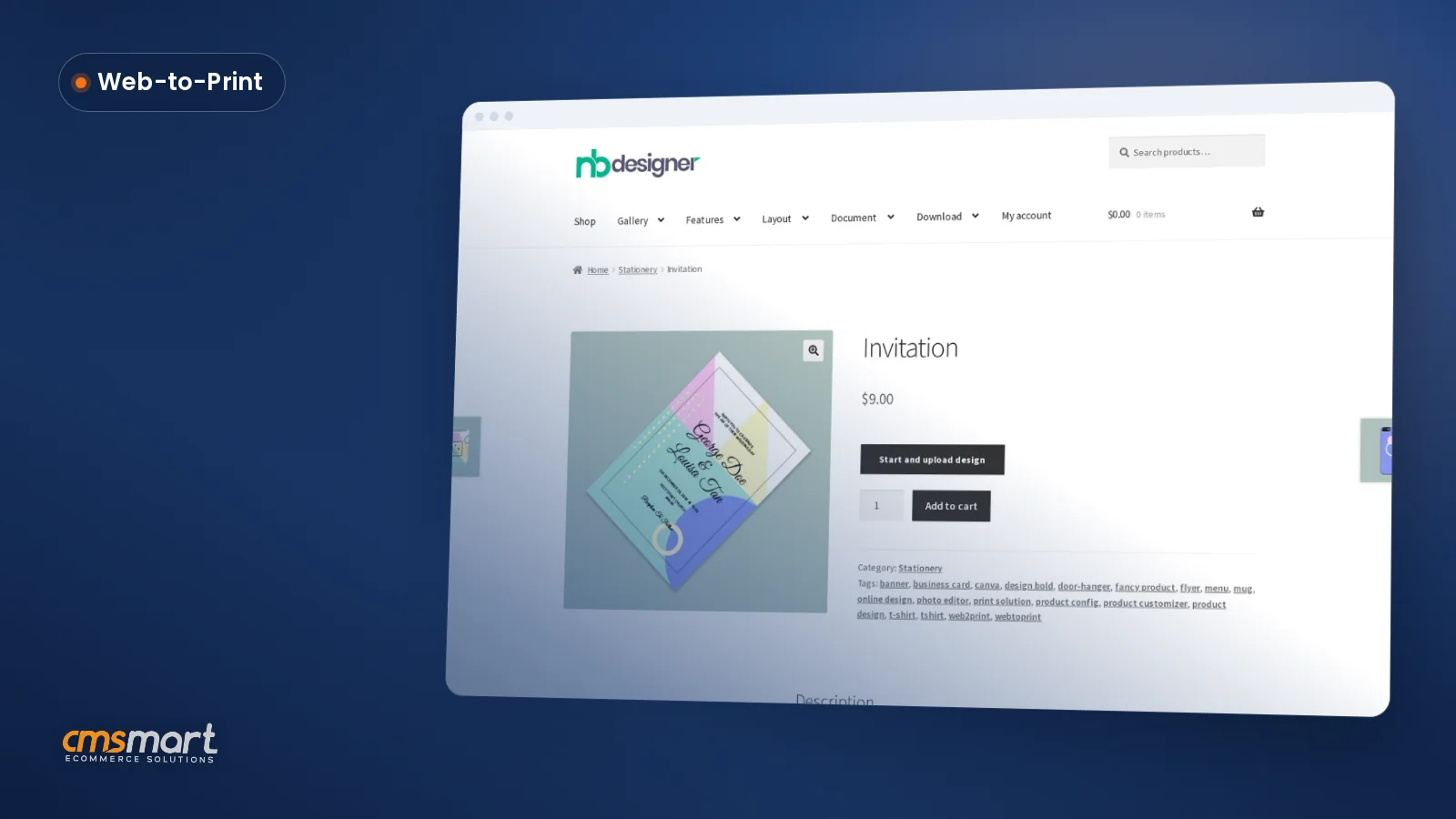
On the Cmsmart demo store, a shopper reaches that price the moment they land on a product: here the Invitation product shows its price and the "Start and upload design" button together, before any design work begins.
Want to model this against your own price list? Talk to an ecommerce expert.
How does Cmsmart turn a price list into a WooCommerce price matrix?
A price matrix is a two-dimensional price table: one option on the columns, a second on the rows, a price in every cell. In Cmsmart Product Designer it is a display type of a Printing Options group, sitting alongside quantity breaks and formula pricing; rules that go beyond a grid move to a custom pricing engine Cmsmart builds for you.
Price matrix vs. dropdowns: a dropdown asks the buyer to choose one value at a time and reveals the price only at the end; a matrix shows every combination at once, which is what makes a volume discount visible instead of buried.
Cmsmart insight: build the manual matrix for your best-selling products, where you want an exact price in every cell, and reach for a Math formula field on the long tail where cell-by-cell pricing would never finish. Leaving a cell empty in the manual matrix is also the simplest way to stop an order you never want printed — no extra setting needed.
What happens to that price once the order lands is part of the same architecture:
What is the business value of pricing print products online?
Online print pricing pays back through fewer manual quotes, consistent margins, volume discounts that lift order size, and sales that close outside office hours. Cmsmart recommends tracking quote volume, quote turnaround time, conversion on priced products and average order value before and after you switch a product line to a matrix.
ROI worksheet. Monthly saving = quotes avoided × minutes per quote ÷ 60 × your hourly staff cost. Monthly upside = extra orders you expect from faster buying × your average order margin, using your own conversion assumption. Weigh both against the cost of setting up the matrix or commissioning a pricing engine.
The category itself is still growing: the global print-on-demand market reached an estimated $11.38 billion in 2025, forecast to grow roughly 20% a year through 2034 (IMARC Group, 2025) — more storefronts launch every year, raising the cost of still answering with "let me get back to you on price."
How do you set up a price matrix with Printing Options?
To set up a price matrix, create a Printing Options group, add at least two fields with a data type of Multiple options, give each option a price type, then switch the group's Appearance to the Price Matrix display type and place one field on each axis. Every label below is from Cmsmart Product Designer 2.17.0.
Once a shopper adds a priced, designed product to their cart, the price they saw on the matrix carries straight through — in the cart and at checkout the line item keeps its price and a thumbnail of the design next to it, with no renegotiation in between.
For apparel, the Bulk variation display type shows one quantity input per size instead of a matrix grid — useful when every size shares the same price. See the car wrap store guide for size-based products, the DPI guide for print quality, or the Printing Options setup walkthrough if you are starting from scratch.
When should you go further than the matrix with custom development?
A price matrix handles any pricing rule that depends only on the options a buyer picks. You need custom development once price also depends on something outside the matrix: real cost inputs, who the customer is, rush timing, or data that lives in another system. Cmsmart builds these as projects on top of WooCommerce — discovery, solution design, sprints, QA, launch and support.
Going further than a grid is also where going further than WooCommerce's defaults tends to pay off — see our web-to-print solutions for how pricing, the designer and fulfilment fit together across a store, and our project delivery model for how a custom pricing engine actually gets built.
Get a custom pricing engine quote
Why work with Cmsmart on your print pricing?
Cmsmart builds the Printing Options engine and the Price Matrix display type inside Cmsmart Product Designer itself, and has been building web-to-print stores since 2012 as a division of Netbase JSC — so your pricing is set up by the same team that wrote the code, not a reseller reading from a manual.
Our own project records count 6,300+ client projects and 500+ custom development projects across 80+ countries since 2012, and Cmsmart is rated 4.2 on Trustpilot from 404 reviews. A recent five-star review: "The designer works exceptionally well across all devices and allows us to create the exact customisations required to perfectly fit our products and our business model." — Web Developer, Trustpilot, September 2026. Related work: a web-to-print catalogue built for custom printing.
Frequently asked questions
Do I need Printing Options to build a price matrix?
Yes. The price matrix is a display type of a Printing Options group in Cmsmart Product Designer — there is no separate "price matrix" feature to install.
How many fields does a price matrix need?
At least two. The options on your horizontal field become the columns and the options on your vertical field become the rows.
What happens to a combination I don't want to sell?
Turn on Manual build price matrix and leave that cell empty. The combination shows as disabled on the storefront, so a buyer cannot select it.
Can I price by the size of the artwork instead of a fixed size list?
Yes. Use a Custom dimension field with Enable measure price base on design area, then choose Price per Unit or Area breaks.
Can different customers see different prices on the same matrix?
Not with the standard matrix — every visitor sees the same grid. Customer-group and contract price lists are built by Cmsmart as custom development.
Can buyers still ask for a quote on a priced product?
Yes. Tick Get a quote on the product and requests appear on the Quote Requests screen for your team to answer directly.
Price every print product online, without the back-and-forth
Send us your price list and your rules. Cmsmart sets up your Printing Options price matrices, or builds a pricing engine that keeps margins right on every order you take.
Get a custom pricing engine quote See pricing engine development
Update log: October 2026, rewritten as a business case study with 2.17.0 captures from the Cmsmart demo store; Printing Options and Price Matrix facts checked against the live admin screens.